Learn Claude Cowork
A complete step-by-step course covering all five core features of Claude Cowork. From your first Skill to fully automated workflows.
Learning Path
Skills: Your first AI workflows
Skills are reusable instruction sets that tell Claude exactly how to perform a task. Think of them as recipes or templates that you create once and reuse forever.
Why do you need Skills?
Without Skills, every time you ask Claude to write a blog post, you'd have to explain your brand voice, formatting preferences, target audience, and SEO guidelines from scratch. Skills solve this by saving all those instructions in a reusable package.
How is a Skill built?
A Skill consists of three parts: a name (e.g., 'Blog Post Writer'), a description (what it does), and the instructions (how Claude should behave). You can also add variables like {topic} or {word_count} that change each time you use the Skill.
The real power: chaining Skills
The real power comes from chaining Skills together. For example, your 'Research' Skill gathers information, your 'Outline Generator' Skill creates a structure, and your 'Blog Writer' Skill produces the final piece. This creates a complete content pipeline that runs with a single command.
Sharing with your team
Skills are also shareable. If you build a great 'Client Proposal' Skill, you can share it with your entire team. Everyone gets the same consistent, high-quality output.
Learning objectives
- Understand what Skills are and how they work
- Create your first custom Skill from scratch
- Use variables and dynamic inputs in Skills
- Chain multiple Skills together for complex workflows
- Share and manage your Skill library
Step by step
- 1Open Claude Cowork and navigate to the Skills section
- 2Click 'Create Skill' and give it a clear name and description
- 3Write your instructions using natural language. Be specific about tone, format, and constraints
- 4Add input variables like {topic} or {audience} for flexibility
- 5Test the Skill with different inputs and refine the instructions based on output quality
- 6Save and organize your Skill in the appropriate category
Pro tips
- ·Start simple: a good Skill does one thing well
- ·Be specific in your instructions, include examples of the desired output
- ·Use variables to make Skills reusable across different contexts
- ·Review and iterate: the best Skills are refined over time
Real-world examples
Email Writer Skill
Prompt:
"Use my Email Writer skill to respond to this client asking about delayed delivery"
Result: Claude writes a professional, empathetic email in your exact brand voice, with appropriate apology and next steps. Every email follows the same high standard.
Meeting Notes Skill
Prompt:
"Use my Meeting Notes skill to summarize this 45-minute transcript"
Result: Claude extracts key decisions, action items with owners, and deadlines. Output is formatted in your team's standard template.
Social Media Skill
Prompt:
"Use my LinkedIn Post skill on the topic of AI productivity with {tone: inspiring}"
Result: Claude creates a LinkedIn post with hook, story, insight, and call-to-action. Optimized for engagement based on your style.
Common mistakes
- ✕Making Skills too broad: 'Write good content' is too vague. Be specific about format, length, tone and audience
- ✕Forgetting to add variables: Hard-coding values like a specific topic makes the Skill single-use
- ✕Not testing with edge cases: Try your Skill with unusual inputs to find weaknesses
- ✕Overcomplicating instructions: If your Skill instructions are 3 pages long, break it into multiple smaller Skills

Plugins: Extend Claude's capabilities
Plugins give Claude superpowers it doesn't have by default. Without Plugins, Claude can only work with text from its training data. With Plugins, it can search the web, run code, generate images, and much more.
Plugins are apps for Claude
Think of Plugins as apps for Claude. Just like your phone can do more with apps installed, Claude becomes more capable with each Plugin enabled. The difference is that Claude automatically knows when to use which Plugin based on your request.
Web Search: always up to date
The Web Search Plugin is perhaps the most important one. Claude's training data has a cutoff date, so it can't know today's stock price or yesterday's news. With Web Search enabled, Claude automatically searches the internet when it needs current information.
Code Interpreter: instant data analyst
The Code Interpreter Plugin turns Claude into a data analyst. You can upload a CSV file, ask Claude to find trends, and it writes and runs Python code to generate charts and statistics. You don't need to know any programming.
Combining multiple Plugins
The key insight is that Plugins work together. In a single conversation, Claude might search the web for competitor pricing (Web Search), analyze the data (Code Interpreter), and create a presentation (Document Generation). It chains these tools automatically.
Learning objectives
- Understand the Plugin ecosystem and available options
- Enable and configure Plugins in your workspace
- Use Web Search to find current information
- Generate images and visualizations with Plugins
- Run Python code with the Code Interpreter
Step by step
- 1Go to Settings > Plugins to see all available options
- 2Enable the Plugins you want to use (e.g., Web Search, Code Interpreter)
- 3Start a new conversation and mention the tool you want to use
- 4Claude will automatically activate the right Plugin for your request
- 5Review the output and adjust your prompt if needed
Pro tips
- ·You can combine multiple Plugins in a single conversation
- ·Be explicit about what you want: 'Search the web for...' triggers Web Search
- ·Code Interpreter is great for data analysis, charts and file processing
- ·Check Plugin outputs for accuracy, especially with web search results
Real-world examples
Market Research
Prompt:
"Search for the latest pricing of our top 3 competitors and create a comparison table"
Result: Claude uses Web Search to find current prices, then formats them in a clean comparison table with your product included.
Data Analysis
Prompt:
"Upload: sales-q1.csv. Show me the top 5 products by revenue and visualize the monthly trend"
Result: Claude runs Python code on your CSV, identifies top products, and generates a professional chart. No coding skills needed.
Content + Images
Prompt:
"Write a blog post about remote work trends and generate a header image"
Result: Claude writes the article and creates a matching header image using the image generation Plugin.
Common mistakes
- ✕Not enabling Plugins before starting a conversation. Check Settings > Plugins first
- ✕Being too vague: 'Find some info' gives poor results. Be specific: 'Search for Q1 2026 AI market size reports'
- ✕Trusting web search results blindly. Always ask Claude to cite its sources
- ✕Forgetting that Code Interpreter can handle files. Upload spreadsheets, CSVs, PDFs directly
Connectors: Integrate your tools
Connectors link Claude directly to the apps you use every day. Instead of copying and pasting information between apps, Claude reads your data directly from Google Drive, Notion, Slack and more.
No more copy-pasting
The biggest time waste in most workflows is context switching: copying data from one app, pasting it into another, then asking Claude about it. Connectors eliminate this entirely. Claude goes directly to the source.
Google Drive integration
For example, with the Google Drive Connector, you can say 'Summarize my Q1 sales report from Drive' and Claude finds the document, reads it, and gives you a summary. No downloading, no uploading, no copy-pasting.
Notion as your knowledge base
The Notion Connector is especially powerful for teams that use Notion as their knowledge base. Claude can query your entire Notion workspace to answer questions, find procedures, or pull context for tasks.
Connectors + Skills = automation
Connectors also work beautifully with Skills. Imagine a 'Weekly Client Update' Skill that automatically pulls the latest project status from Notion, checks email threads in Gmail, and generates a polished update email. That's the power of Connectors + Skills combined.
Learning objectives
- Understand how Connectors provide context to Claude
- Set up Google Drive, Notion or Slack Connectors
- Query your documents and knowledge bases through Claude
- Manage Connector permissions and data access
- Combine Connectors with Skills for powerful workflows
Step by step
- 1Navigate to Settings > Connectors
- 2Choose the app you want to connect (e.g., Google Drive)
- 3Authorize Claude to access your account with appropriate permissions
- 4In a conversation, reference your connected data: 'Summarize my latest report from Drive'
- 5Claude pulls the relevant data and uses it in its response
Pro tips
- ·Only grant the minimum permissions needed
- ·Connectors work best when you tell Claude which specific documents or channels to look at
- ·Combine a Google Drive Connector with a Report Writer Skill for automated summaries
- ·Review connected accounts regularly and revoke access you no longer need
Real-world examples
Document Summarization
Prompt:
"Find the 'Product Roadmap 2026' in my Drive and list the top 5 priorities"
Result: Claude searches your Drive, finds the document, reads it, and extracts the priorities in a clean list.
Knowledge Base Query
Prompt:
"Check our Notion wiki: what's our refund policy for enterprise customers?"
Result: Claude queries your Notion workspace, finds the relevant policy page, and gives you the answer with a link to the source.
Cross-App Workflow
Prompt:
"Read the last 10 messages in #product-feedback on Slack, then update our Notion feature request tracker"
Result: Claude reads Slack messages, identifies feature requests, and adds them to your Notion database. Two apps, zero manual work.
Common mistakes
- ✕Granting too broad permissions. Start with read-only access and expand only when needed
- ✕Not specifying which document you mean. 'Check my Drive' is vague. 'Find the Q1 report in the Marketing folder' is better
- ✕Forgetting to disconnect old Connectors. Review your connected accounts monthly
- ✕Expecting real-time sync. Connectors pull data when you ask, they don't monitor continuously (use Scheduled Tasks for that)


Dispatch: Send tasks from anywhere
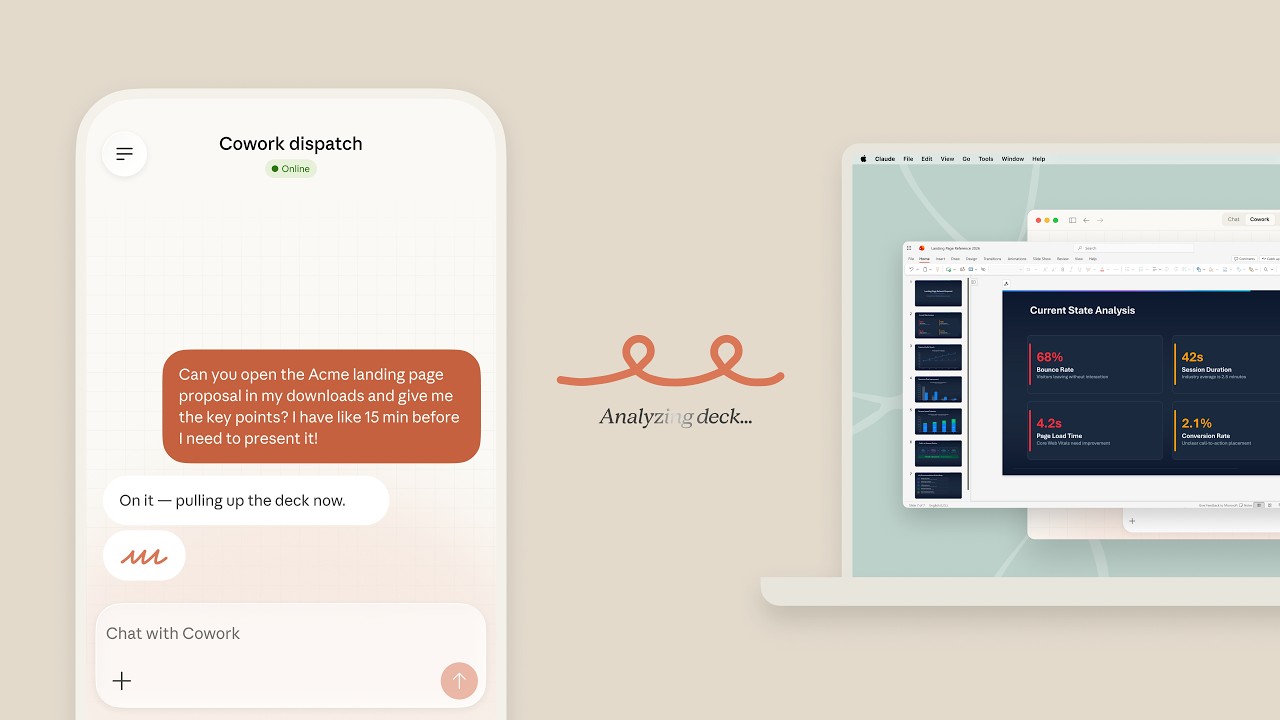
Dispatch turns Claude into an always-available assistant you can reach from any device. Send tasks via email, Slack or other channels without ever opening the Cowork interface.
Tasks from anywhere
Dispatch solves a simple problem: you think of a task for Claude but you're not at your computer, or you're in the middle of something else. With Dispatch, you fire off a quick email or Slack message and Claude handles it in the background.
Email workflow
The email workflow is the most popular: Claude gets a dedicated email address. When you forward an email to it, Claude processes the task and sends the result back to you. This is perfect for handling client emails, summarizing documents, or running Skills on the go.
Dispatch + Skills
Dispatch becomes even more powerful when combined with Skills. Instead of writing detailed instructions in every Dispatch message, you reference a Skill: 'Use my Client Proposal Skill for Acme Corp, budget 50K.' Claude knows exactly what to do.
Shared inbox for teams
For teams, Dispatch creates a shared inbox where anyone can assign tasks to Claude. This means your team gets AI assistance without everyone needing to be Cowork experts. They just send an email.
Learning objectives
- Understand the Dispatch workflow and supported channels
- Set up email-based Dispatch
- Send tasks via Slack integration
- Track Dispatch task status and results
- Combine Dispatch with Skills for automated processing
Step by step
- 1Enable Dispatch in your Claude Cowork settings
- 2Choose your preferred input channel (email, Slack, etc.)
- 3Follow the setup instructions to connect your channel
- 4Send your first task: email or message Claude with a clear instruction
- 5Check the Dispatch dashboard for results and status updates
Pro tips
- ·Write clear, specific task descriptions for best results
- ·Reference a Skill in your Dispatch message: 'Use my Blog Writer skill to...'
- ·Set up Dispatch + Scheduled Tasks for fully hands-off automation
- ·Use Dispatch for quick tasks when you don't want to open the full interface
Real-world examples
Email Forwarding
Prompt:
"[Forward client email] Summarize this and draft a polite response saying we'll deliver by Friday"
Result: Claude reads the forwarded email, writes a summary for you, and drafts a professional response. All via email.
Slack Command
Prompt:
"@Claude use my Competitor Analysis skill for {company: Tesla, focus: EV pricing}"
Result: Claude runs your Competitor Analysis Skill and posts the results back in the Slack channel within minutes.
Mobile Quick Task
Prompt:
"Translate this contract clause to Dutch and check for any unusual terms"
Result: Send from your phone while commuting. By the time you arrive at the office, the translation and analysis are ready.
Common mistakes
- ✕Writing vague Dispatch messages. 'Do something with this' gives bad results. Be specific about what you want
- ✕Forgetting to reference Skills. Without a Skill, Claude uses default behavior. With a Skill, output is consistent
- ✕Not checking the Dispatch dashboard. Results might need review before sending to clients
- ✕Sending sensitive data through unsecured channels. Use encrypted email for confidential documents

Scheduled Tasks: Automate your day
Scheduled Tasks are the ultimate automation feature. Claude works on autopilot, executing tasks at set times without any manual intervention. This is where Claude truly becomes an autonomous AI coworker.
Fully autonomous
Scheduled Tasks close the loop on full automation. Instead of asking Claude to do something, Claude does it proactively. You set it up once, define the schedule, and Claude delivers results on time, every time.
Morning briefing on autopilot
The most popular use case is the daily morning briefing. Claude checks your email, calendar, news feeds, and analytics dashboards, then sends you a personalized summary before you even start working. That's 30 minutes saved every morning.
End-to-end automation
Scheduled Tasks work best when combined with all other Cowork features. A Scheduled Task can use a Skill for consistent output, pull data via Connectors, and deliver results through Dispatch. This creates end-to-end automation with zero manual steps.
Every recurring task is a candidate
Think about what you do every day, every week, every month that follows the same pattern. Write a weekly report? Schedule it. Send a Monday team update? Schedule it. Check competitor pricing? Schedule it. Every recurring task is a candidate for automation.
Learning objectives
- Understand how Scheduled Tasks work and their limitations
- Create your first scheduled task
- Set up daily, weekly or custom schedules
- Monitor and manage running tasks
- Build end-to-end automated workflows
Step by step
- 1Navigate to the Scheduled Tasks section in Claude Cowork
- 2Click 'Create Scheduled Task' and define what Claude should do
- 3Choose a schedule: daily, weekly, or set a custom cron expression
- 4Optionally attach a Skill and Connectors the task should use
- 5Activate the task and monitor the first run
- 6Review the output and adjust the schedule or instructions as needed
Pro tips
- ·Start with a daily task to see how it works before building complex schedules
- ·Combine with Connectors to pull fresh data for each run
- ·Use Dispatch to receive the results via email or Slack
- ·Monitor your first few runs closely to catch any issues early
Real-world examples
Morning Briefing
Prompt:
"Every weekday at 7:30 AM: Check my Gmail, Google Calendar, and Google Analytics. Summarize key items and send to Slack #daily-briefing"
Result: You wake up to a personalized briefing covering emails that need attention, today's meetings, and website traffic changes.
Weekly Report
Prompt:
"Every Monday at 9 AM: Use my Weekly Report Skill, pull data from our Notion project tracker, and email the report to the team"
Result: Your team receives a professionally formatted status report every Monday. No manual work involved.
Competitor Monitor
Prompt:
"Every Wednesday: Search for news about [competitor names], analyze sentiment, and update our Notion competitive intelligence page"
Result: Your competitive intelligence stays up to date automatically. Claude finds articles, analyzes them, and organizes insights.
Common mistakes
- ✕Scheduling too many tasks at once. Start with one, perfect it, then add more
- ✕Not monitoring the first few runs. The output might need instruction tweaks
- ✕Setting overly complex schedules. A simple 'every weekday at 9 AM' is easier to manage than custom cron expressions
- ✕Forgetting about rate limits. If you schedule 20 tasks at the same time, some might be delayed



Ready to get started?
Watch the best tutorials, explore the glossary, or check the subscription plans to start your Claude Cowork journey.