Dispatch: Send tasks from anywhere
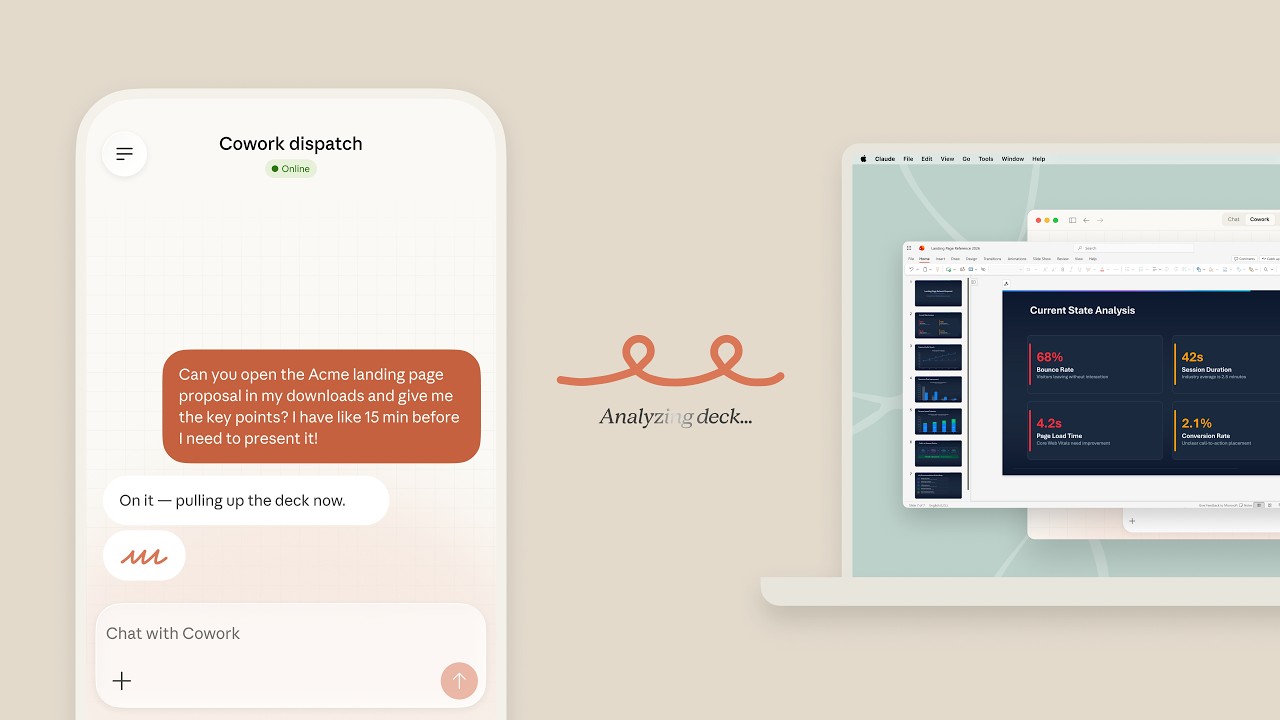
Dispatch turns Claude into an always-available assistant you can reach from any device. Send tasks via email, Slack or other channels without ever opening the Cowork interface.
Compiti da qualsiasi luogo
Dispatch solves a simple problem: you think of a task for Claude but you're not at your computer, or you're in the middle of something else. With Dispatch, you fire off a quick email or Slack message and Claude handles it in the background.
Workflow via email
The email workflow is the most popular: Claude gets a dedicated email address. When you forward an email to it, Claude processes the task and sends the result back to you. This is perfect for handling client emails, summarizing documents, or running Skills on the go.
Dispatch + Skills
Dispatch becomes even more powerful when combined with Skills. Instead of writing detailed instructions in every Dispatch message, you reference a Skill: 'Use my Client Proposal Skill for Acme Corp, budget 50K.' Claude knows exactly what to do.
Casella condivisa per i team
For teams, Dispatch creates a shared inbox where anyone can assign tasks to Claude. This means your team gets AI assistance without everyone needing to be Cowork experts. They just send an email.
Obiettivi di apprendimento
- Understand the Dispatch workflow and supported channels
- Set up email-based Dispatch
- Send tasks via Slack integration
- Track Dispatch task status and results
- Combine Dispatch with Skills for automated processing
Passo passo
- 1Enable Dispatch in your Claude Cowork settings
- 2Choose your preferred input channel (email, Slack, etc.)
- 3Follow the setup instructions to connect your channel
- 4Send your first task: email or message Claude with a clear instruction
- 5Check the Dispatch dashboard for results and status updates
Consigli professionali
- ·Write clear, specific task descriptions for best results
- ·Reference a Skill in your Dispatch message: 'Use my Blog Writer skill to...'
- ·Set up Dispatch + Scheduled Tasks for fully hands-off automation
- ·Use Dispatch for quick tasks when you don't want to open the full interface
Esempi pratici
Email Forwarding
Prompt:
“[Forward client email] Summarize this and draft a polite response saying we'll deliver by Friday”
Result: Claude reads the forwarded email, writes a summary for you, and drafts a professional response. All via email.
Slack Command
Prompt:
“@Claude use my Competitor Analysis skill for {company: Tesla, focus: EV pricing}”
Result: Claude runs your Competitor Analysis Skill and posts the results back in the Slack channel within minutes.
Mobile Quick Task
Prompt:
“Translate this contract clause to Dutch and check for any unusual terms”
Result: Send from your phone while commuting. By the time you arrive at the office, the translation and analysis are ready.
Errori comuni
- ✕Writing vague Dispatch messages. 'Do something with this' gives bad results. Be specific about what you want
- ✕Forgetting to reference Skills. Without a Skill, Claude uses default behavior. With a Skill, output is consistent
- ✕Not checking the Dispatch dashboard. Results might need review before sending to clients
- ✕Sending sensitive data through unsecured channels. Use encrypted email for confidential documents